Blogging 201, Day Eight: Widget Visibility

Blogging 201, Day Eight: Widget Visibility

Widgets: can there possibly be anything left to learn? Yes! Time to dig in to widget visibility.

Today’s takeaway: learn to specify exactly which widgets appear on which posts or pages by using the visibility settings built in to each one.

Action time! Adjust the visibility settings of one of your widgets. You can always undo it, but get a sense of how the settings work.

simplified-blogging copy
“I no longer buy papers or tabloids or magazines or read blogs. I used to.” Adele

Blogging 201, Day Eight: Widget Visibility

Using widget visibility to your advantage

* Hide your Flickr Widget on posts tagged with “photography” if you don’t want Flickr image thumbnails displayed when visitors are viewing a photo-heavy post. (There is such a thing as image overload!) (Select Hide and add Tag is Photography.)

* If you have a group blog, show the Twitter Widget of the appropriate contributor on posts tagged with that author. (Select Show and add Author is [Contributor’s Name].)

* If you’re an author, hide the custom Image Widgets linking to your books on your “Books” page to avoid duplicate information. (Select Hide and add Page is Books.)

* Hide the widget displaying your blogroll on a “Favorites” page, which may also be full of links. (Select Hide and add Page is Favorites.)

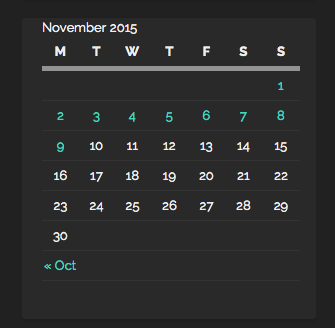
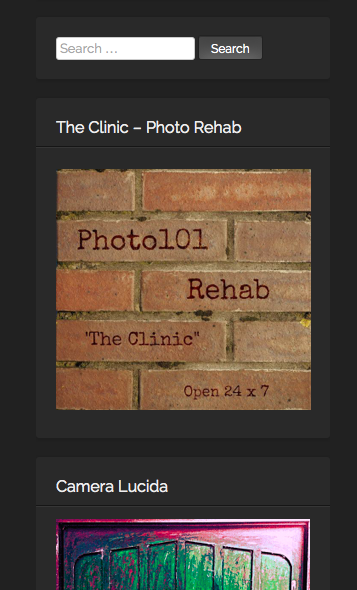
I was playing around with the visibility settings a little bit today. I found it useful for the sidebar to be visible for the pages and posts. It’s very easy to navigate back and forth, when the options are handy on the right hand side, rather than using the back button or having to scroll endlessly.

The “hide” and “unhide” is an great option, if you have specific widgets and it was great to have learnt the how-to today:)

Keep calm and keep on blogging!

blogCartoon copy

Blogging 201, Day Seven: Custom Text and Image Widgets

Blogging 201, Day Seven: Custom Text and Image Widgets

We have a better sense of what widgets offer, so let’s go further. Completely custom widgets let you create a cohesive look from header to sidebar.

Today’s takeaways: you’ll learn how to create, upload, and configure custom widgets that extend the design elements you’ve been introducing elsewhere on your blogs.

Action time! Create a new custom image widget using the tutorial links above. if you don’t want to add any new widget content, add a graphic or photo element to an existing widget by using a custom image widget to add the graphic above the existing one.

rantings

“Blogging is … to writing what extreme sports are to athletics; more free-form, more accident-prone, less formal, more alive. It is in many ways, writing out loud” Andrew Sullivan, The Atlantic

Blogging 201, Day Seven: Custom Text and Image Widgets

Image widget basics

Using the image widget takes three steps:

– Upload an image to your blog’s Media Library.
– Add an image widget to your sidebar.
– Paste the URL of the image you uploaded into the widget.

I have added several image widgets into my blog’s sidebar. Some of them are related to the challenges I participate in on a weekly basis, and some are for the various blogging university workshops I am /have taken part in and a few to writing sites as well.

I used to have the badges for all the nominations and blogger awards too, but the clutter got too much and I had to downsize. I am even thinking of doing more clean up after this blogging course 😉

Please find attached some examples of the same:
1    2

3    4

5    6

Keep calm and keep on blogging!

Blogging 201, Day Six: The Uncluttered Sidebar

Blogging 201, Day Six: The Uncluttered Sidebar

Time to move on to another part of your blog where small changes have a big impact: your sidebar.

Today’s takeaways: we’ll understand the purposes widgets serve, think critically about which widgets are most helpful for us, and start to basic widget customization.

Action time! Add one new widget to your blog — think strategically! — and customize its title and settings. You don’t have to keep it, but get comfortable with the process.

blog-is-merely-a-tool

“I think the word ‘blog’ is an ugly word. I just don’t know why people can’t use the word ‘journal.’” Moby

Blogging 201, Day Six: The Uncluttered Sidebar

Head to the Commons today to:

* Learn what widgets are how they’re useful
* Choose the right widgets for your blog
* Understand basic ways to customize widgets

I have found the widgets to be the most helpful and useful way to organize and arrange search both within the blog and to the outside links. I have also created a few widgets for some of the sites which challenges I take part in.

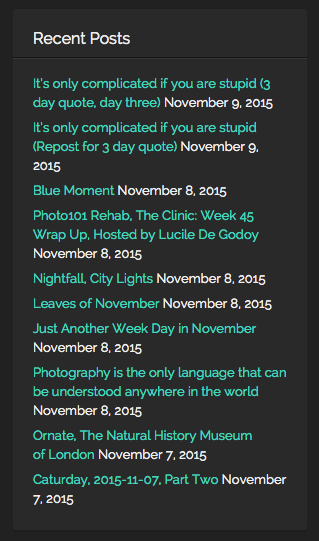
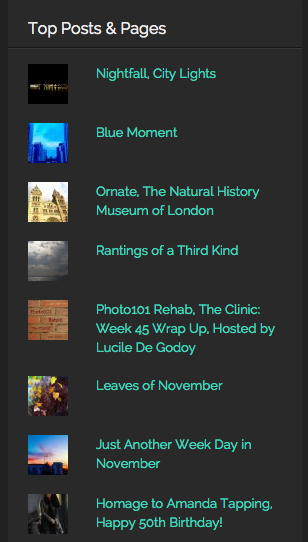
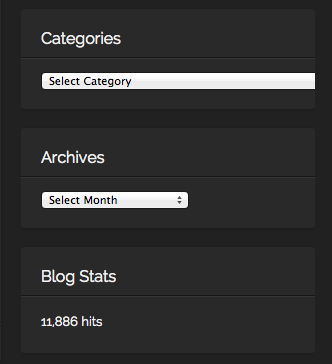
On the right hand side, I have placed widgets for; Recent posts, Top posts, Blogs I follow, Social Media buttons, Categories, Archives, Calendar, Blog following, Flickr and Instagram Photos among others. I put them in an order, which I consider to be most important (ascending order). Of course, I do change the order from time to time, depending, if I need to add or remove something.

Here are some examples from my blog:

Recent Posts    Top Posts

Categories, By Month   SoMe

Monthly    Challenges, Sites part of


Keep calm and keep on blogging!

i-m-famous-but-no-one-knows-it-yet