Blogging 201, Day Ten: HTML Columns, Tables, and Post Styling

Blogging 201, Day Ten: HTML Columns, Tables, and Post Styling

Once you have some basic familiarity with HTML, you can use the HTML Editor to add code that overrides the Visual Editor’s defaults — handy for poets, creative writers, and anyone who has a very specific idea of how they want their posts to look.

Today’s takeaway: we’ll understand how to use HTML to manipulate a post’s formatting — making columns, adding (or removing) spacing, creating unusual indentation, and more.

The Visual Editor does a pretty good job of formatting content in a neat, reader-friendly way. But what if you have a particular vision for your post, and it doesn’t give you enough flexibility? HTML to the rescue.

blog 1

” I don’t want to go viral, I want to set hearts on fire. ― Coco J. Ginger”

Blogging 201, Day Ten: HTML Columns, Tables, and Post Styling

Head to the Commons to learn:

* How to use preformatting to space text exactly as you’d like
* How to control line breaks and indentation
* How to create columns
* How to add tables

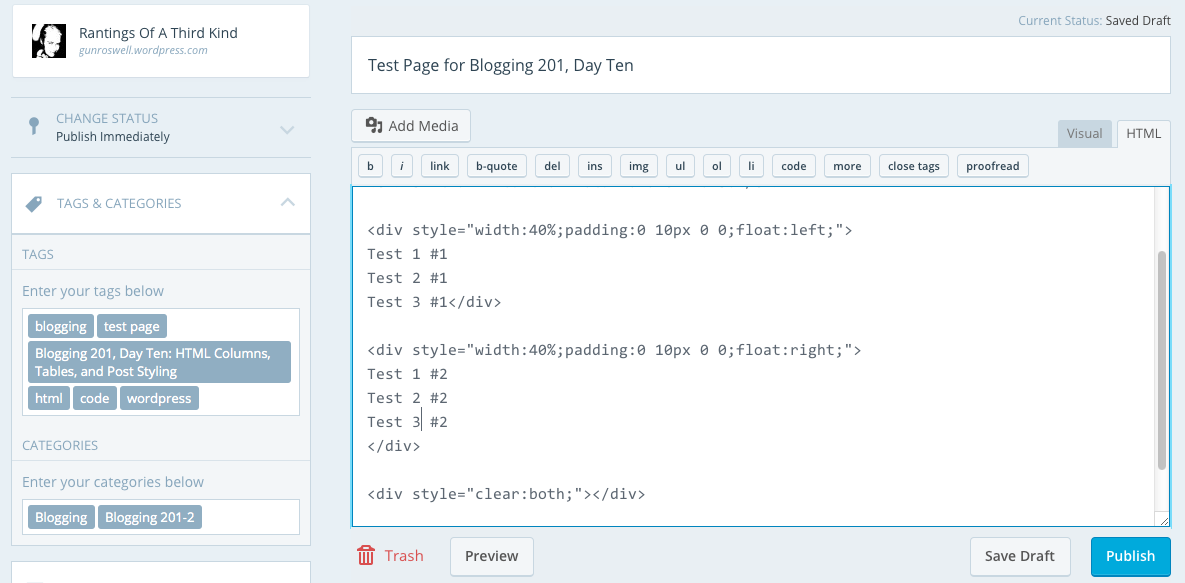
Action time! Open a draft post, and create either a column or table from scratch using HTML. (You can trash the post when you’re done.)

My effort for the day:
Day Ten, Part Two

Keep calm and keep on blogging!

code 2

Blogging 201, Day Ten: HTML Columns, Tables, and Post Styling, Part Two

Blogging 201, Day Ten: HTML Columns, Tables, and Post Styling, Part Two, Test Page

blog 2

” I don’t want to go viral, I want to set hearts on fire. ― Coco J. Ginger”

Blogging 201, Day Ten: HTML Columns, Tables, and Post Styling

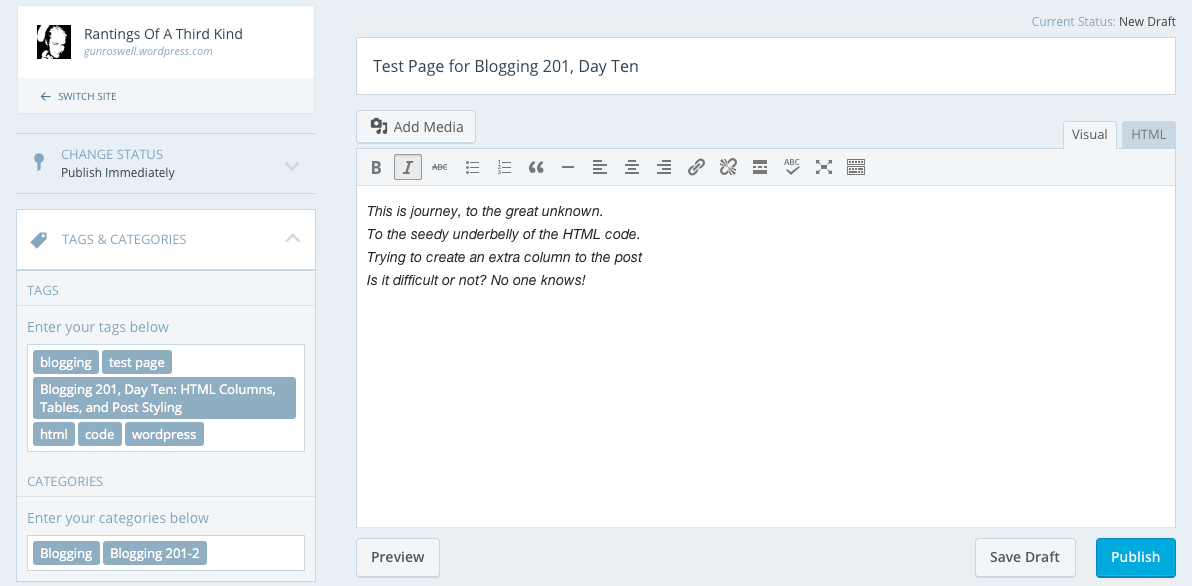
Test Page for Blogging 201, Day Ten

This is journey, to the great unknown.
To the seedy underbelly of the HTML code.
Trying to create an extra column to the post
Is it difficult or not? No one knows!


Today’s testing results:

visual

html

post


Keep calm and keep on blogging!
code

Blogging 201, Day Nine: HTML Basics

Blogging 201, Day Nine: HTML Basics

A few days ago, we talked about text widgets and gave you a bit of code that would let you display an image in a text widget. That code was HTML, and there’s lots more it helps you do.

Today’s takeaways: we’ll understand what HTML is, how to find our posts’ and pages’ HTML, and a few foundational HTML tags.

The content of all your posts and pages is written in HTML, even if you don’t know it. When you’re drafting, you have access to a Visual Editor and an HTML Editor. The Visual Editor approximates what your post will actually look like, and automatically creates the HTML. The HTML Editor lets you see and edit the underlying code; viewing your post in the HTML Editor gives you some more editing options, and can help clarify why your posts look the way they do.

html1


“Not only are bloggers suckers for the remarkable, so are the people who read blogs” Seth Godin

Blogging 201, Day Nine: HTML Basics

Head to the Commons to learn:

* What HTML is, and how to find yours
* Basic text styling with HTML
* Inserting links with HTML
* Inserting images with HTML

Action time! In your next post, create a link using HTML.

binaryfox__computer_background_by_wickedoreo-d5hlldg

First off, I have to admit I am actually quite familiar with HTML (and XML). I was already coding some twenty years ago with C, Java and C++. First in school, then in school again and surprisingly, the third time in school. I actually have a degree both in software and web design. But as life would have it, I ended up doing completely different things in the wide world of IT.

I have worked with MS SharePoint and Joomla, which in many ways are similar to the current offering of WordPress in the form of a blog site. I also used to build and host my own sites over ten years ago, when no such thing as blogging, twitter or similar existed. And believe you me, it took a lot of time and effort to complete one simple site.

Guess what I am trying to convey here is: Thank goodness for built in HTML editors, where I don’t have to worry about code anymore! Saves me a lot of time and effort to make a simple post out there for the world to see! But that being said…

In response to the action given, please visit my personal home page as guided by this link, done in HTML code:

Check out my personal home page!


Keep calm and keep on blogging!

stock-footage-d-background-of-green-binary-numbers